
On this page
Product walkthrough
Use Talos to build an agent visually, test a published version and review what happened in each run. These screenshots show the current application with synthetic demo data; they are illustrations of the interface, not customer outcomes or performance measurements.
Before you start
Open Talos and sign in to your workspace. Choose the intended environment in the workspace switcher. A sandbox is a separate environment with its own agents, runs, secrets and phone configuration; select it before creating test resources. An organization admin manages API keys, credentials and telephony. A member can build agents and start runs; a viewer can review them.
If your workspace has no sandbox or refuses runs, ask your organization admin or Cumulus representative to confirm setup. See Workspace and access.
Build a flow
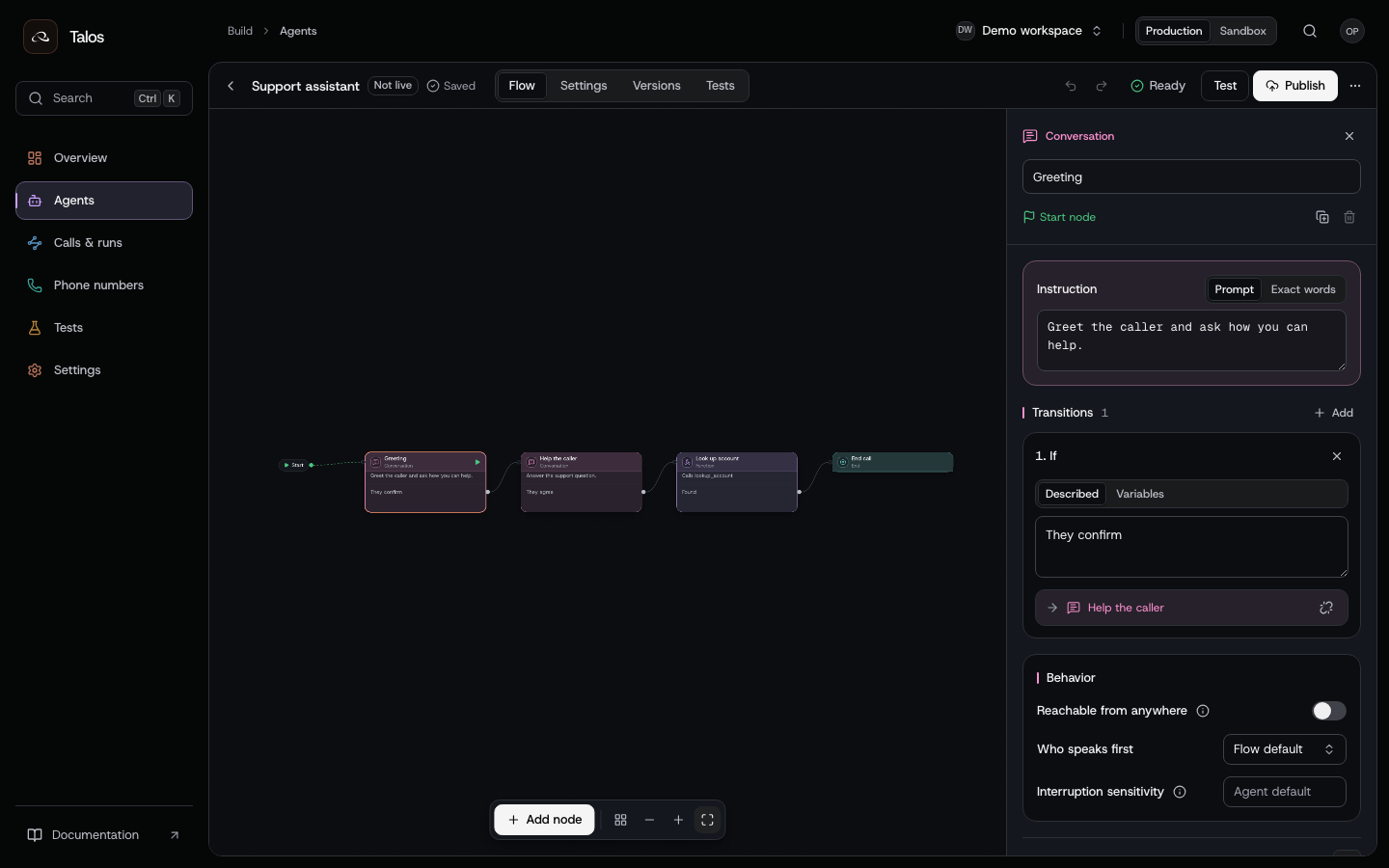
Agent editor, synthetic demo workspace. Prompts and connections describe the conversation; the inspector edits the selected node.
- Open Agents and create an agent from a template, or import a Retell conversation-flow export. Choose a cloud task, cloud chat or phone template that matches the work you want it to do.
- Edit the global prompt to state the agent's job, boundaries and expected inputs. Select each node to edit its instructions. Add transitions for the decisions that move the conversation to the next node.
- Add the actions your flow needs. HTTP credentials belong in secrets; use references in the agent instead of embedding credentials in prompts or URLs.
- Validate the draft. Fix errors before publishing; review warnings for behavior that needs a deliberate choice.
A draft is your working copy. Editing it does not change a published version or a run already in progress. Agents explains nodes, variables, actions and draft conflicts.
Test a version
Publish a test version before running a repeatable evaluation. In the API, live: false creates the publication without moving the live version. Run a simulation suite against its exact version, review failed assertions, and inspect the trial transcript. For a phone agent, a browser voice session lets you listen and talk to the agent without placing a carrier call.
Simulations answer a different question from voice testing: assertions check conversation behavior, while a browser session helps you assess spoken interaction. A successful simulation does not prove carrier connectivity. Use an authorized test number when verifying a real phone call.
Follow Test an agent and the publish-and-test recipe.
Review a run
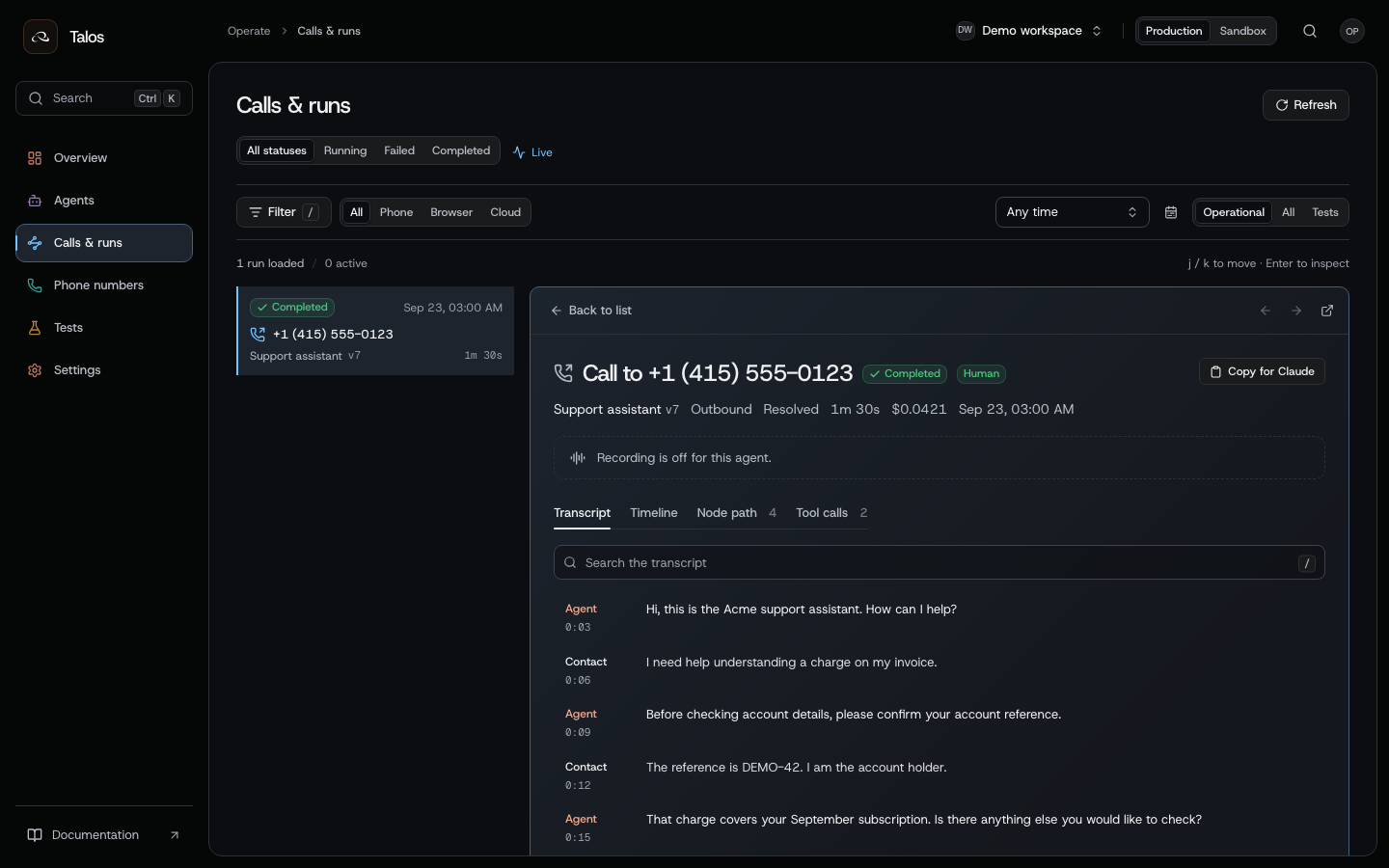
Run review, synthetic conversation. A recording appears only when it was requested and is available.
Open Runs, filter by agent, channel or state, and select a run. Review the transcript, timeline, tool calls, analysis and usage. Check the publication version to establish exactly which behavior ran. A run keeps that version even if you publish or roll back later.
For integrations, use the corresponding reads:
| What you need | Endpoint |
|---|---|
| Run state and pinned version | Get a run |
| Messages and conversation turns | Get a transcript |
| Live progress and event history | Read or stream events |
| Whether an action was allowed and delivered | Get action receipts |
| Structured cloud task output | Get a task result |
| Recording availability and an expiring URL | Get a recording URL |
| Extracted fields and disposition | Get analysis |
| Metered usage and cost | Get run usage |
An admitted run has been accepted; it has not necessarily completed. After completion, an output may still be processing or may be unavailable. Read each output's state rather than assuming every run has a recording or result.
Go live and iterate
Promote the tested publication when you are ready. New runs that omit a version use the live version; existing runs keep their original version. To undo a behavior change, promote an earlier publication. Keep the test suite so you can run it against the next draft's publication and compare results.
For phone deployment, complete carrier and number setup and confirm inbound routing separately if you need incoming calls. For application integration, follow the API quickstart.